Controls, Button Prompts & Key Remapping
How XC2 Recomp merges SDL3 gamepads, keyboard, and mouse camera input into a single controller, redraws on-screen button glyphs for Xbox, PlayStation, and Keyboard, and remaps every button live.
- Input engine: SDL3 + Win32 / X11 / Wayland
- Button prompts:
auto,xbox,playstation,switch,keyboard - Settings shortcut: F1, Esc, or Minus + Plus
- Overlay shortcut: F10 or L3 + R3
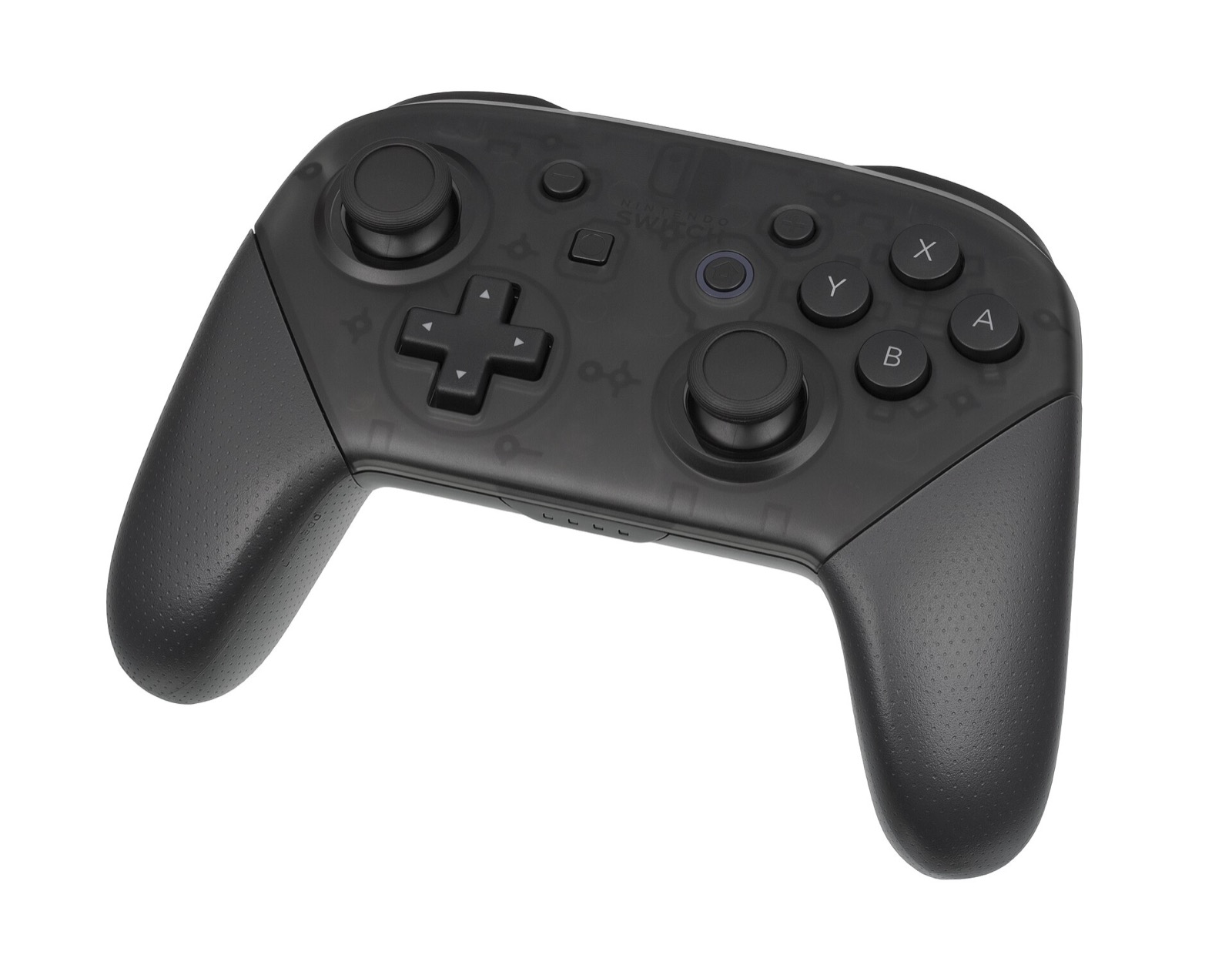
Default gamepad, keyboard & mouse control table
Input in XC2 Recomp merges the first connected SDL3 gamepad, keyboard, and mouse into a single Switch controller (runtime/input_win.c). Buttons are ORed together, and each analog stick uses whichever input source currently has the largest deflection:
| Switch Input | Gamepad (Nintendo Position) | Keyboard & Mouse Default | In-Game Action |
|---|---|---|---|
| Left Stick | Left analog stick | W A S D (hold walk_key to walk) | Character movement |
| Right Stick | Right analog stick | Mouse movement · Arrow keys as secondary source | Camera rotation |
| A | East face button (South on xbox layout) | E | Interact, confirm, pick up, Blade Specials |
| B | South face button (East on xbox layout) | Left Shift | Cancel, Driver Art |
| X | North face button (West on xbox layout) | Space | Jump, Driver Art |
| Y | West face button (North on xbox layout) | Left Mouse Button | Driver Art, field action |
| L / R | Left / Right shoulder bumpers | Q / R | Target cycle, menu tab left/right |
| ZL / ZR | Left / Right triggers (> 50% pull) | Right Mouse Button or Z / F or X | Blade switch / Party commands, menu page turn |
| L3 (Left Stick Click) | Left stick press | Left Ctrl | Field action / stick press |
| R3 (Right Stick Click) | Right stick press | C | Center camera behind player |
| D-Pad Left / Up / Right / Down | D-Pad directions | 1 2 3 4 | Blade switch / quick-select |
| Plus (+) / Minus (-) | Start / Back (Select) | Tab / M | Main menu / Map |
Window shortcuts & in-game overlay hotkeys
| Keyboard Key | Controller Combo | Function |
|---|---|---|
| F1 or Esc | Minus + Plus together | Opens or closes the Dear ImGui settings menu (blocks game input and releases mouse cursor while open; Minus+Plus never leaks to the game). |
| F10 | L3 + R3 (both stick clicks) | Cycles the top-right performance overlay: off → fps → full (frame rate, mean frame time, longest frame time). |
| F11 | — | Toggles borderless fullscreen on or off and saves fullscreen = 1/0 to xc2.ini immediately. |
Button layout (pad_layout) vs on-screen prompts (prompts)
Two separate settings in the F1 → Controls tab (or under [input] in xc2.ini) control how face buttons behave and what icons the game draws in tutorials and battle HUDs:
pad_layout = auto(ornintendo/xbox): Chooses which physical face button acts as Switch A. Innintendomode, East is A and South is B (matching a Switch Pro Controller). Inxboxmode, South is A, East is B, West is X, and North is Y (matching Xbox labels and PlayStation Cross/Circle).autopicksnintendofor Switch Pro / Nintendo-layout pads andxboxfor Xbox and PlayStation controllers.prompts = auto(orxbox/playstation/keyboard/switch): During installation,tools/xc2_prompts.pybuilds redrawn button glyph sheets (using CC0 Kenney Input Prompts artwork) intoprompts/next toxc2.exeand rewrites tutorial text so right-stick click prompts showCinstead of the mouse. When no DLC is installed, the port mounts a virtual empty add-on pack (pack 98, fixed inv0.1.10) solely to deliver these button prompt files without altering save compatibility.
Remapping buttons, fixing swapped GuliKit pads & mouse camera tuning
Every Switch button and stick direction can be rebound in F1 → Controls or by adding bind_<BUTTON> lines to xc2.ini. The menu also supports back paddles on Xbox Elite, DualSense Edge, and Steam Controller (pad:lpaddle1, pad:rpaddle1, pad:lpaddle2, pad:rpaddle2):
# Fix controllers that report A/B and X/Y swapped (such as some GuliKit modes):
bind_A = pad:south, key:E
bind_B = pad:east, key:lshift
bind_X = pad:west, key:space
bind_Y = pad:north, key:mouse_l

# Rumble & Xbox impulse triggers
rumble = 1
rumble_strength = 130      # 0 to 300 percent (default 130)
rumble_curve = 0.6         # 0.2 to 1.5 amplitude exponent (lower boosts subtle vibrations)
rumble_triggers = 1        # Drives Xbox controller impulse triggers

# Dead zones, mouse camera & keyboard walk modifier
stick_deadzone = 8         # 0 to 50 percent circular dead zone (or lstick_deadzone / rstick_deadzone)
mouse_sens = 1             # 0 to 10 (0 disables mouse camera and cursor capture; fixed in v0.1.3 for fast turns)
walk_key = lalt            # Hold Left Alt so WASD walks instead of running
walk_scale = 0.51          # 0.51 ensures 32767 * 0.51 exceeds the 16384 threshold for stick direction bits
Recommended PC controllers
XC2 Recomp uses SDL3 controller input with automatic Nintendo, Xbox and PlayStation button prompt generation (plus custom rumble curve and Xbox impulse trigger options):
| Controller | Best For in XC2 Recomp | Hardware Advantage | Link |
|---|---|---|---|
| 8BitDo Ultimate 2 Wireless | Nintendo layout & Windows/Deck dock | Zero-drift TMR sticks, charging dock, native Switch/XInput mode toggle | View on Amazon |
| GameSir Cyclone 2 | 1000 Hz Blade combo canceling | TMR sticks, micro-switch ABXY buttons and 1000 Hz wireless dongle | View on Amazon |
| Sony DualSense | PlayStation button prompts | Automatic PlayStation icon rendering in XC2 tutorials and Driver Arts HUD | View on Amazon |
| Xbox Wireless Controller | Xbox prompts & impulse triggers | Supports rumble_triggers = 1 in xc2.ini with redrawn Xbox button glyphs | View on Amazon |
As an Amazon Associate, this site earns from qualifying purchases.


Common questions
How do I release the mouse cursor when playing with keyboard and mouse?
Press Esc (or F1) at any time. Opening the settings menu releases the cursor and pauses mouse camera capture so you can move, resize, or close the window. Clicking back inside the game’s client area captures the cursor again without sending that click into the game.
How do I calibrate a controller with stick drift?
Open F1 → Controls with your gamepad connected. The Left stick dead zone and Right stick dead zone rows display a live stick now resting deflection percentage before the dead zone is applied. Let go of the stick and set that stick’s dead zone a few percent above its resting readout.